
Zephyr Testing is one of the many testing management apps in the Marketplace, and we have a small integration to help you see your Zephyr tests linked to Jira issues.
How to link requirements to Zephyr tests ?
There are multiple ways to do so:
-
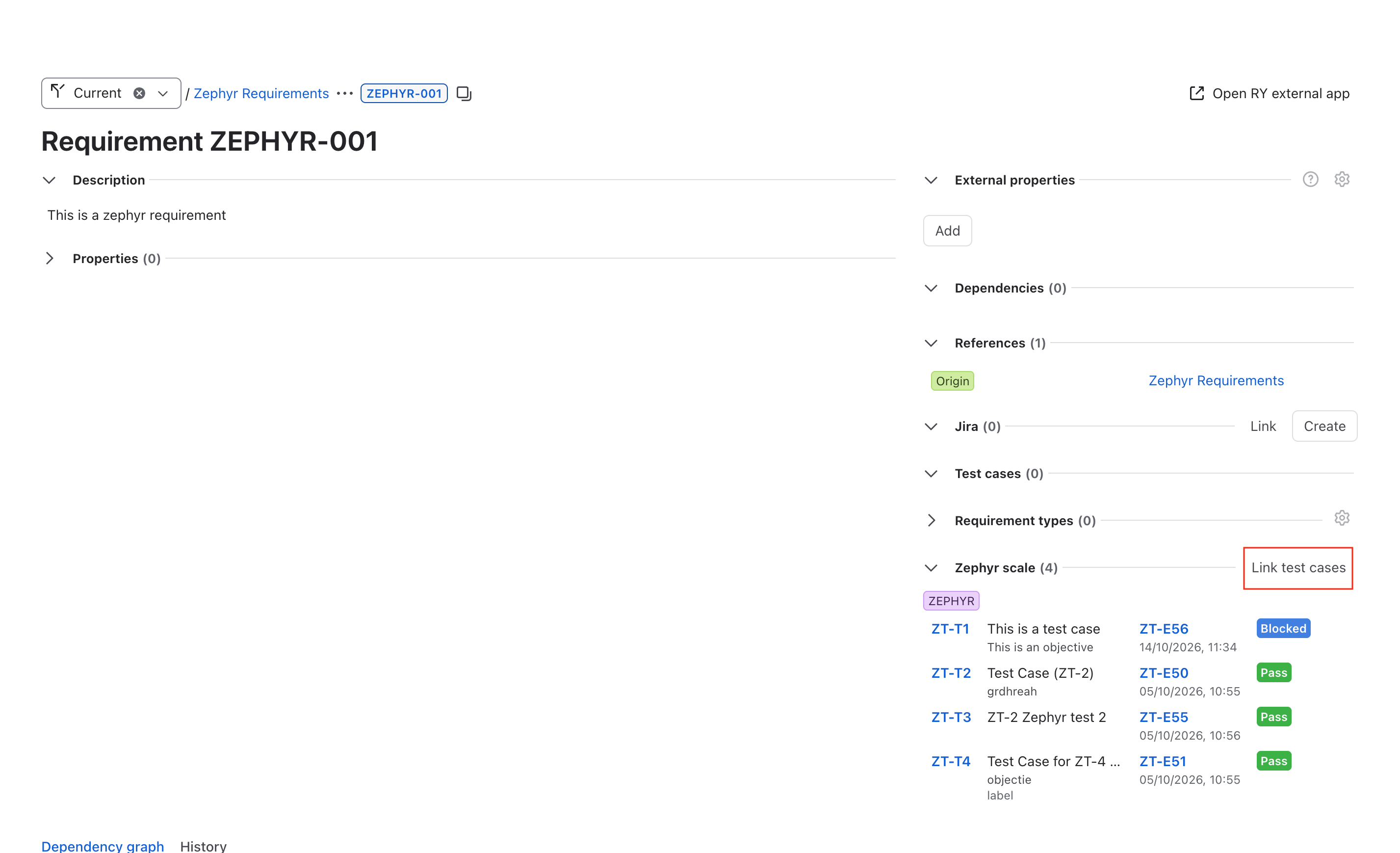
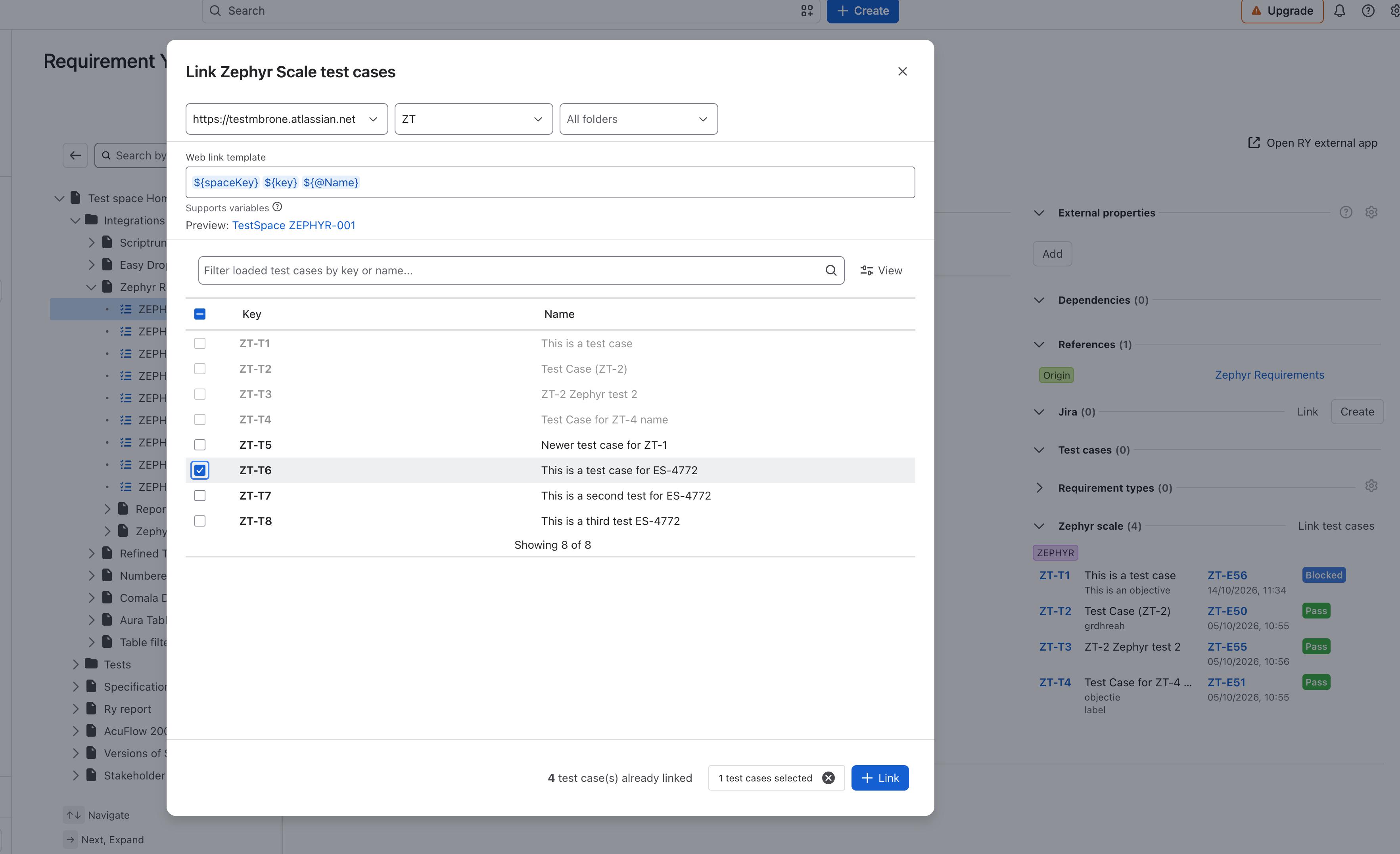
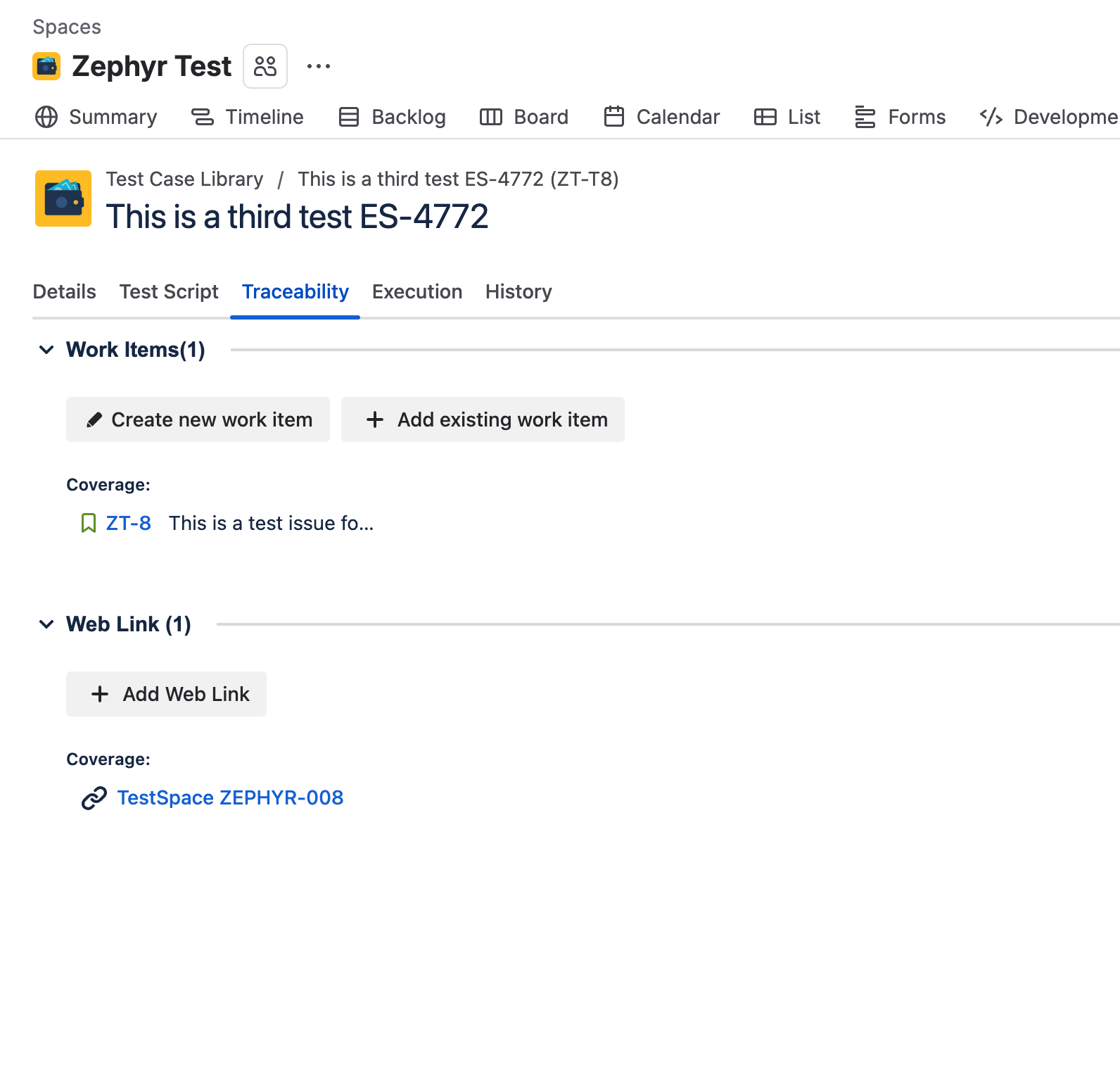
Requirement → Zephyr test
-
In this case, you are only able to link tests from the requirement detail.
-
It is not possible to link requirements from the Zephyr UI.
-
You can create 1 to many relationships. Stay tuned for improvements regarding many to many relationships.
-
-
Requirement → Jira issue → Zephyr test
-
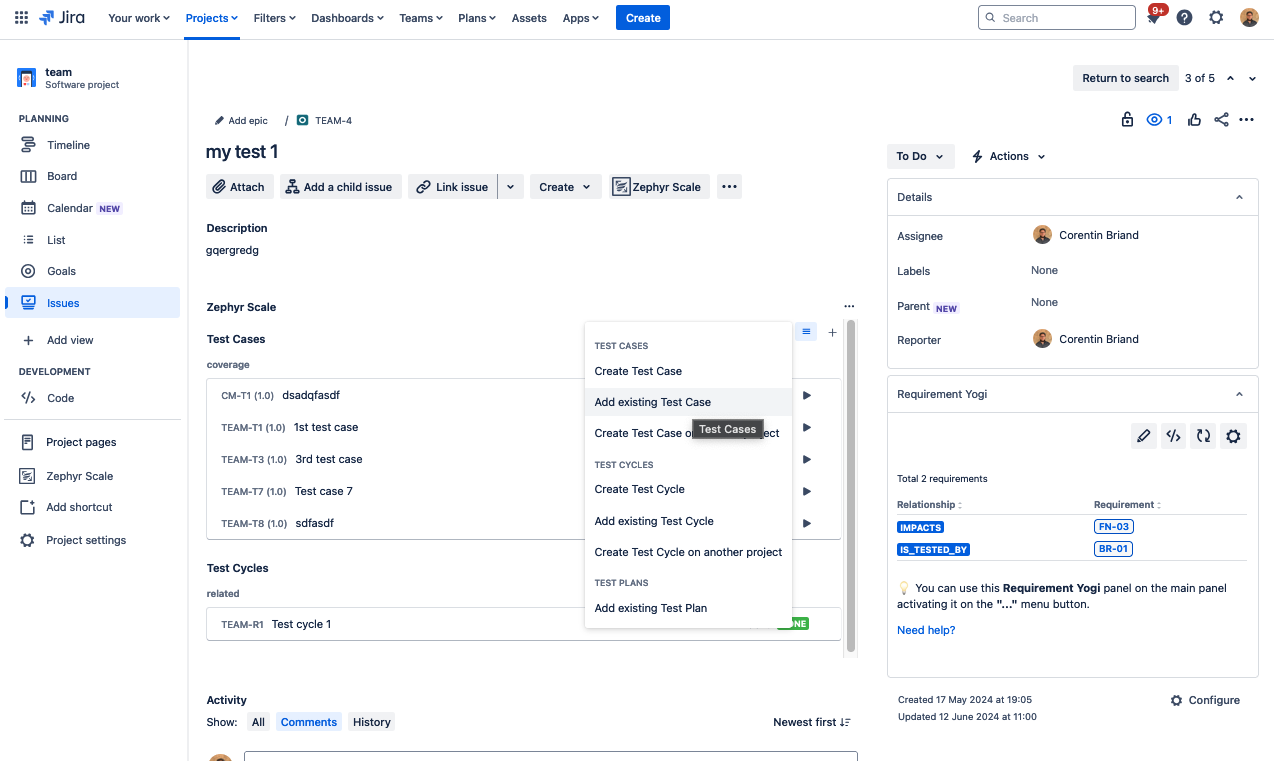
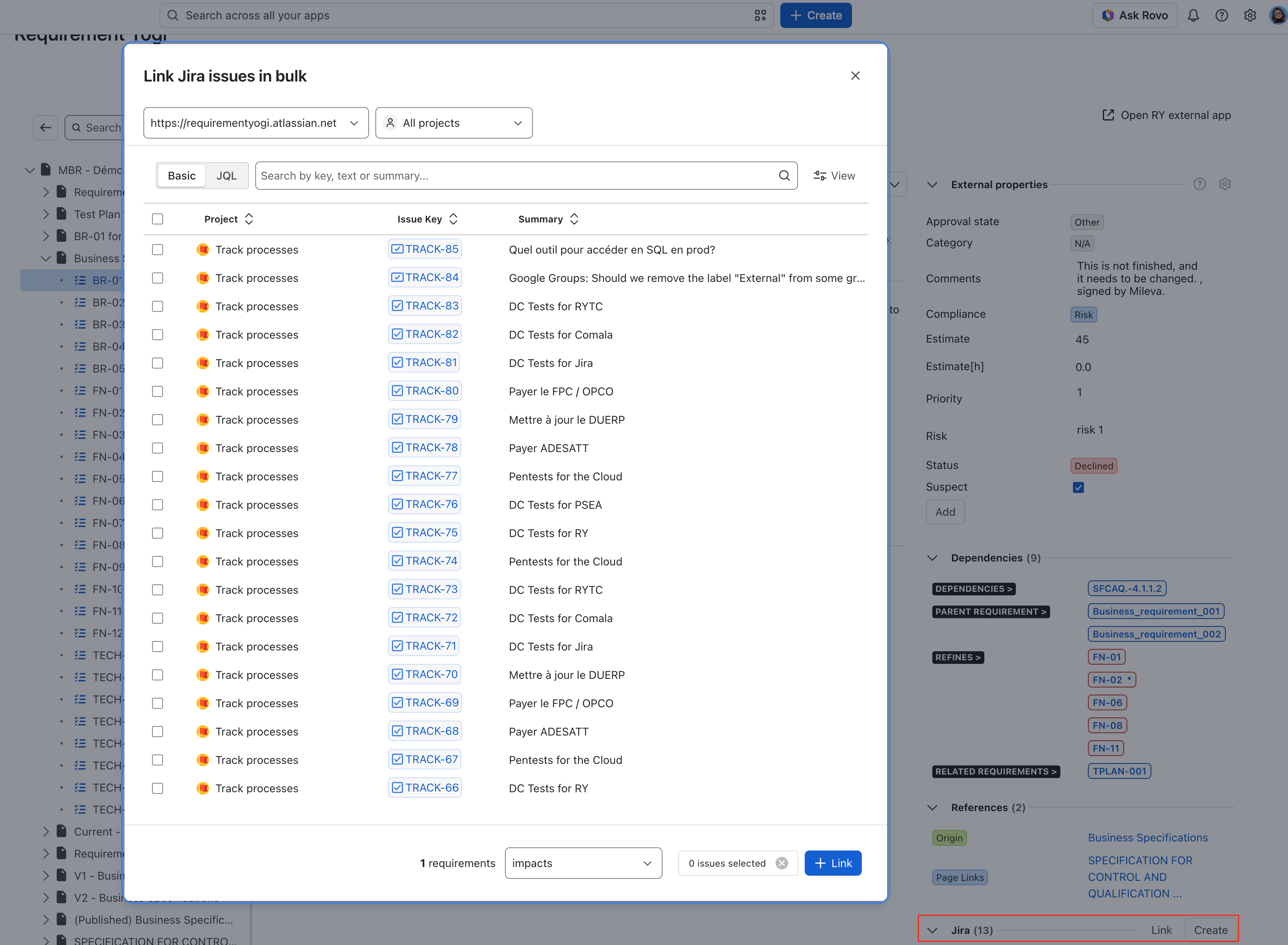
You can use the Bulk Jira linking to link or create multiple Jira issues, and then use Zephyr’s UI to link zephyr tests to issues.
-
You can make your links from different directions:
-
Requirement → Jira issue → Zephyr test
-
Zephyr → Jira issue → Requirement
-
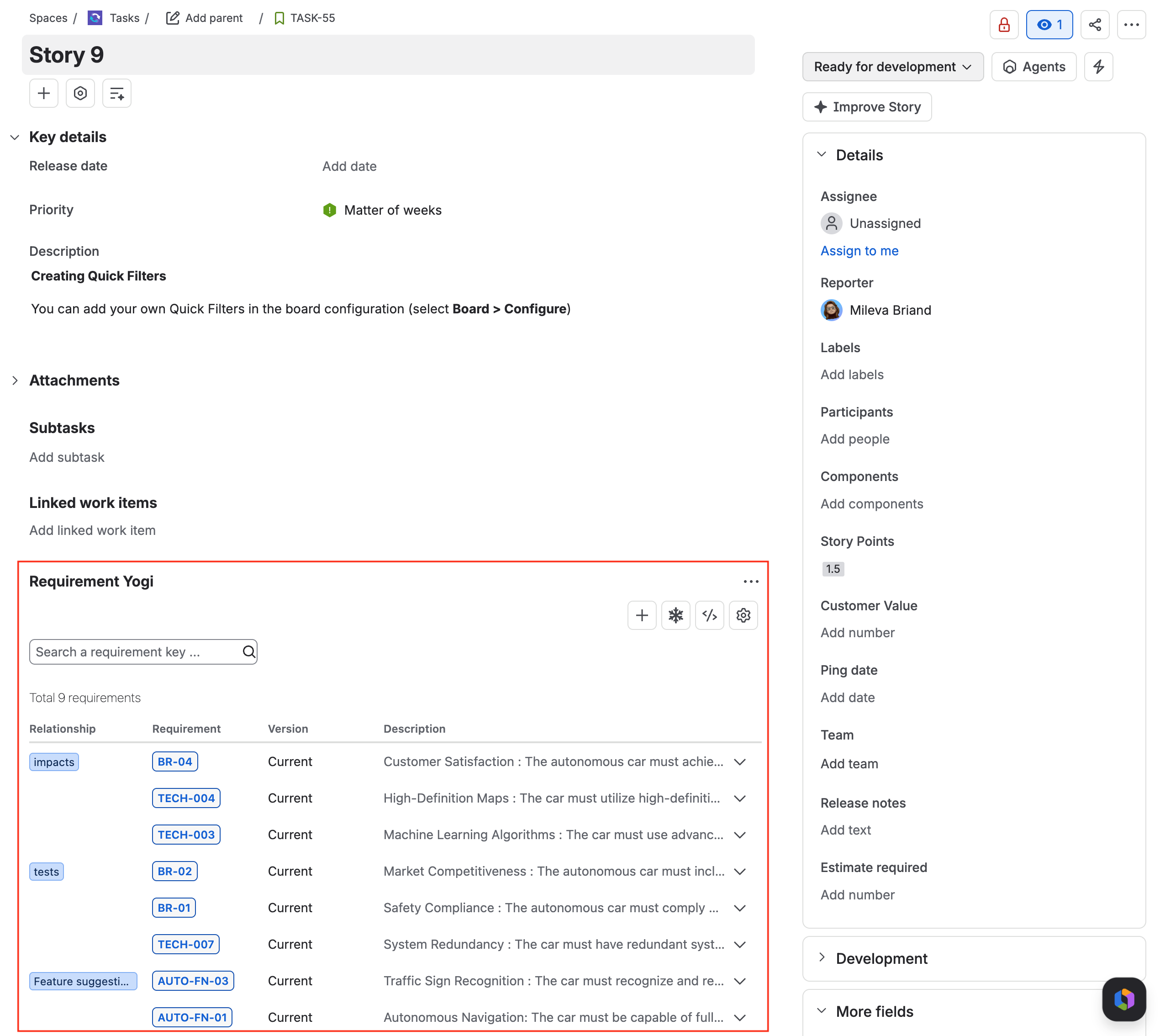
Jira issue → Requirement, and then add the Zephyr test later.
-
-
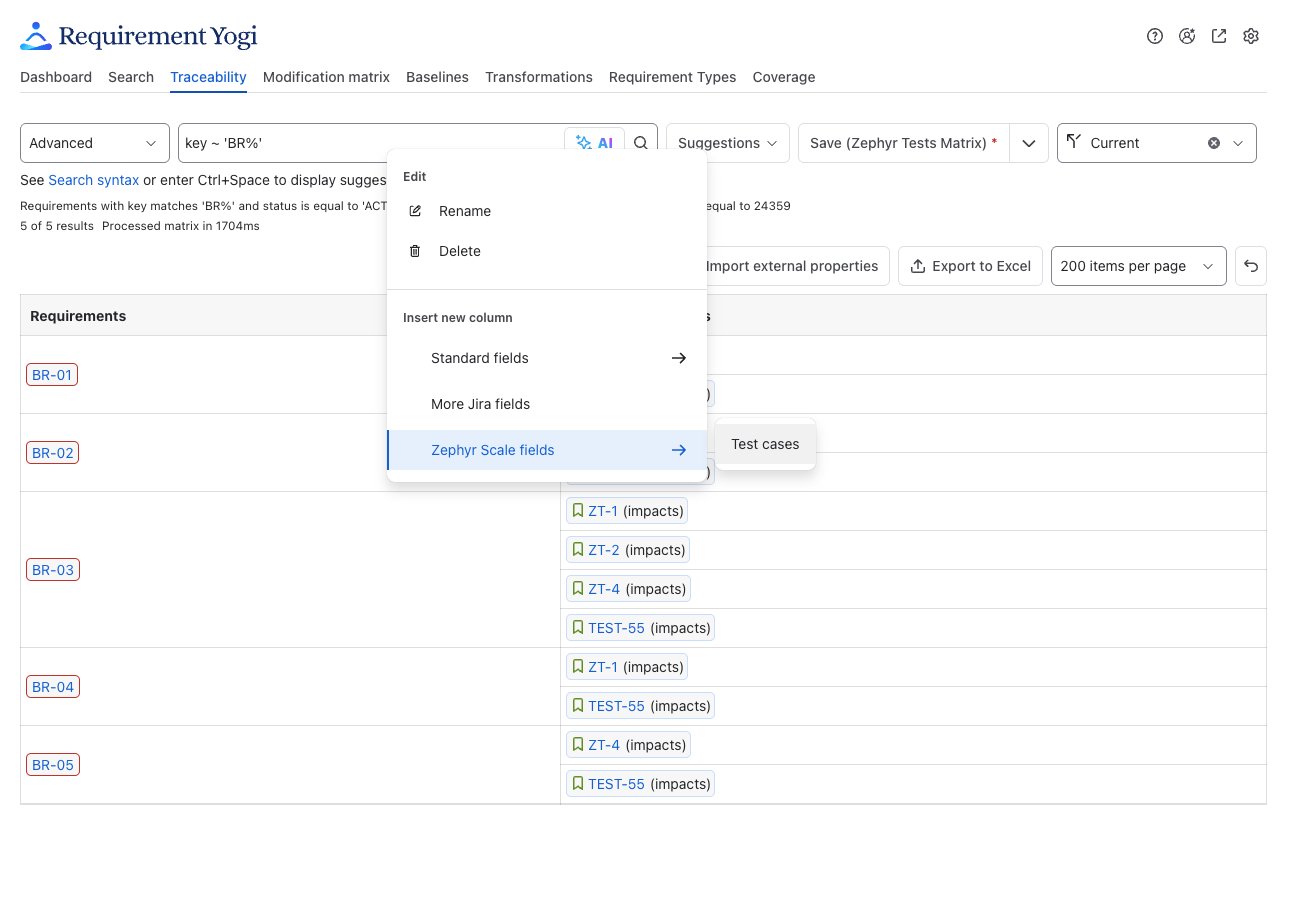
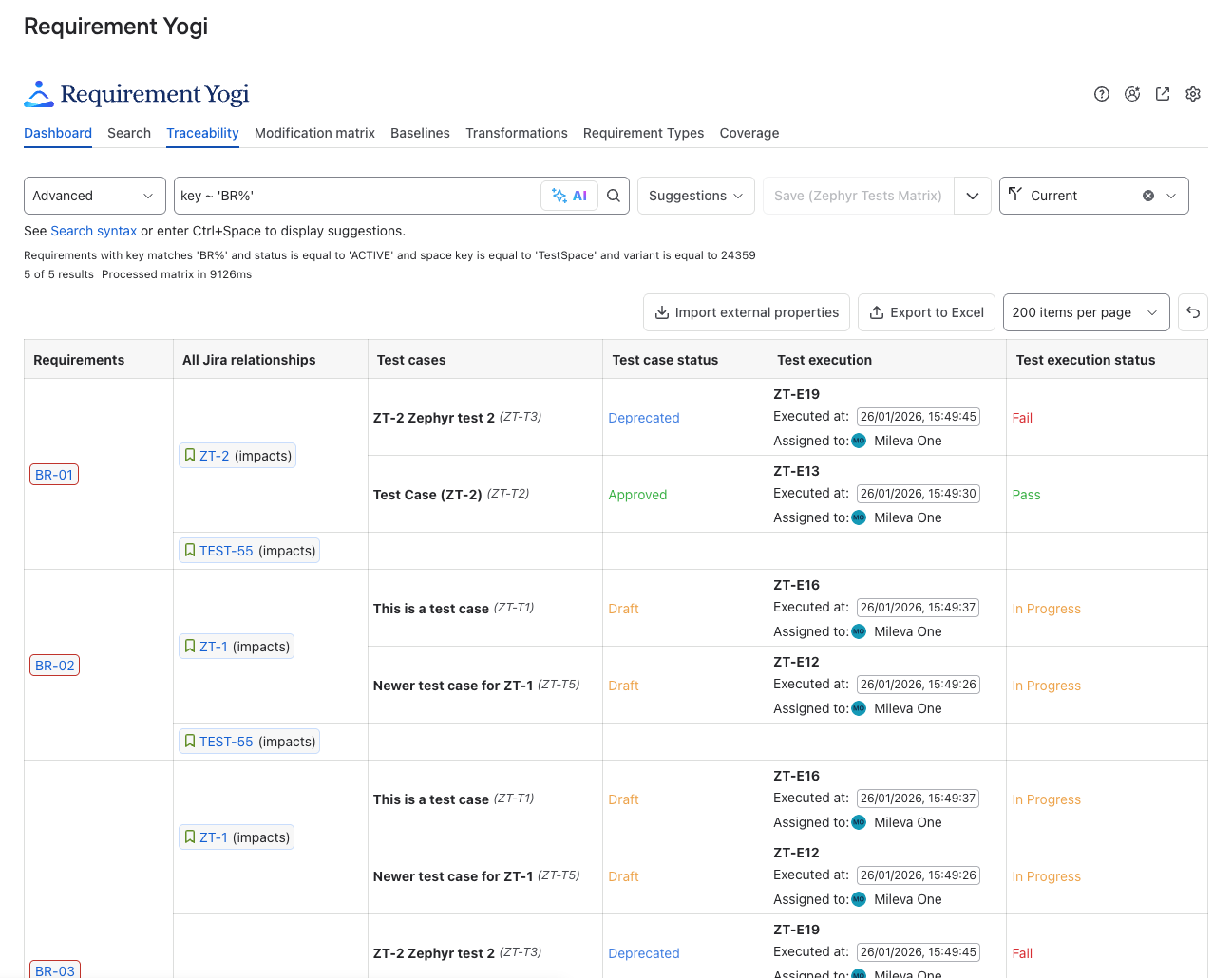
How to see the Zephyr data in the traceability matrix
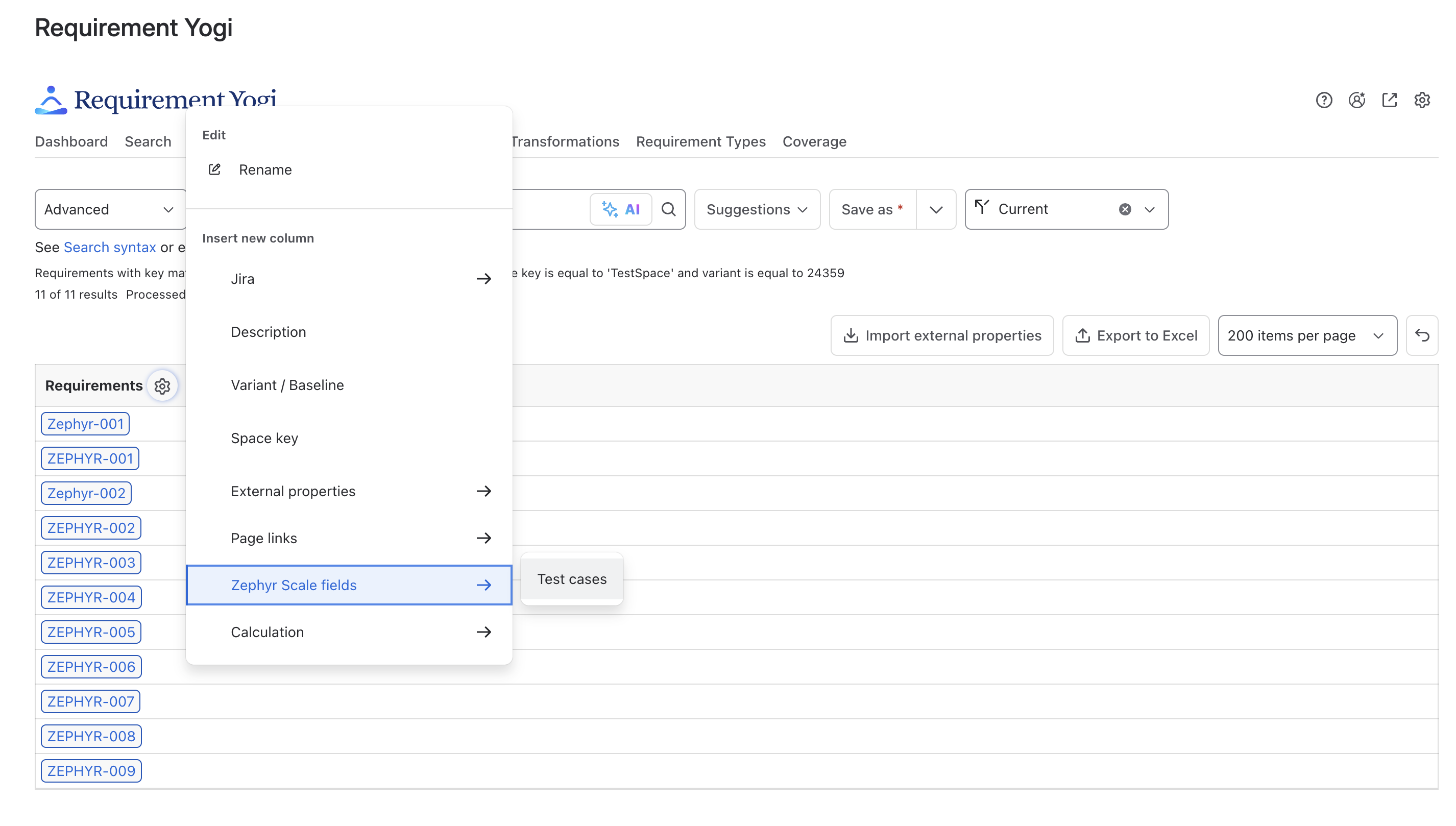
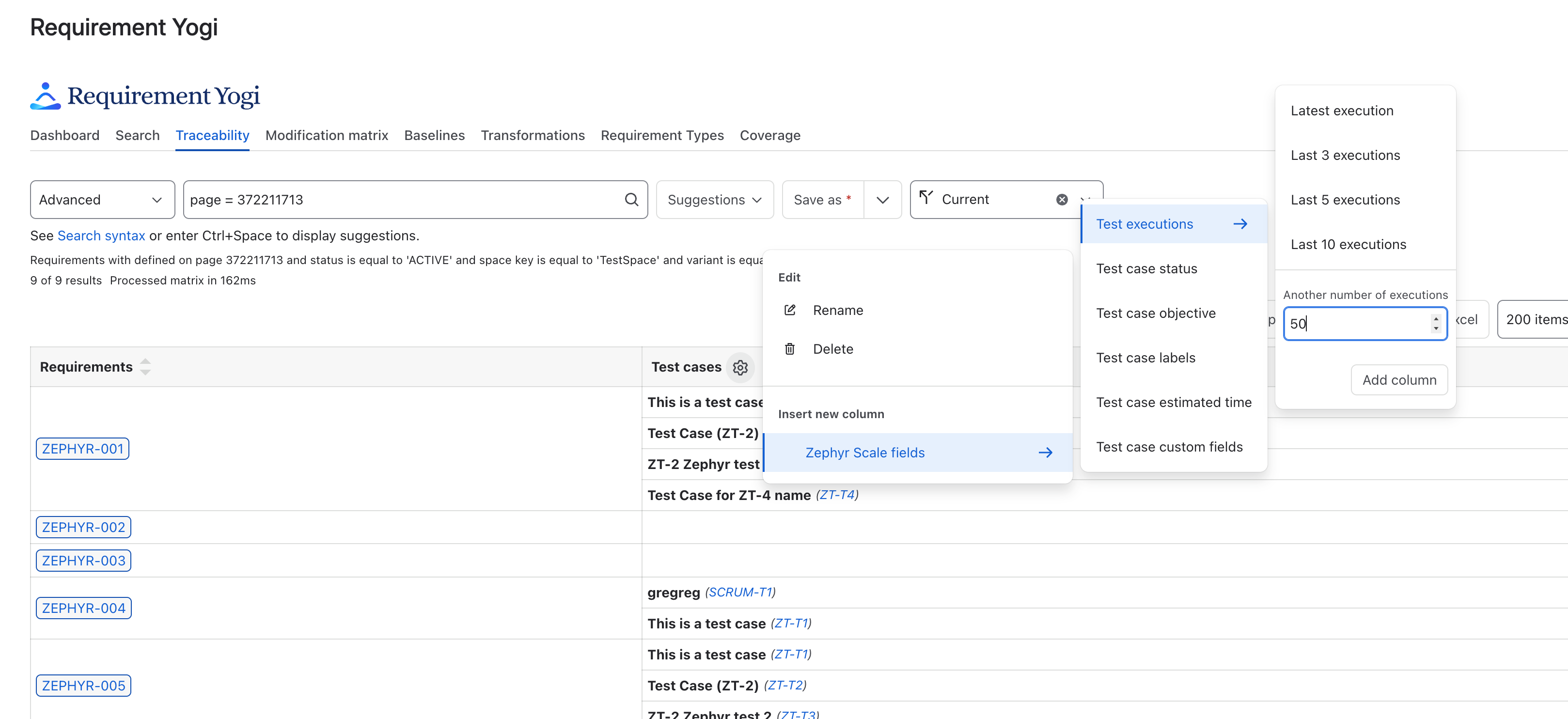
1. Requirement → Zephyr test
|
|
|
|
|
|
2. Requirement → Jira issue → Zephyr test
|
|
|
|
|
b. Or, from the Confluence point of view. See more information here: Requirement Yogi for Jira . |
|
|
|
|
|
Administration - How to set up the integration?
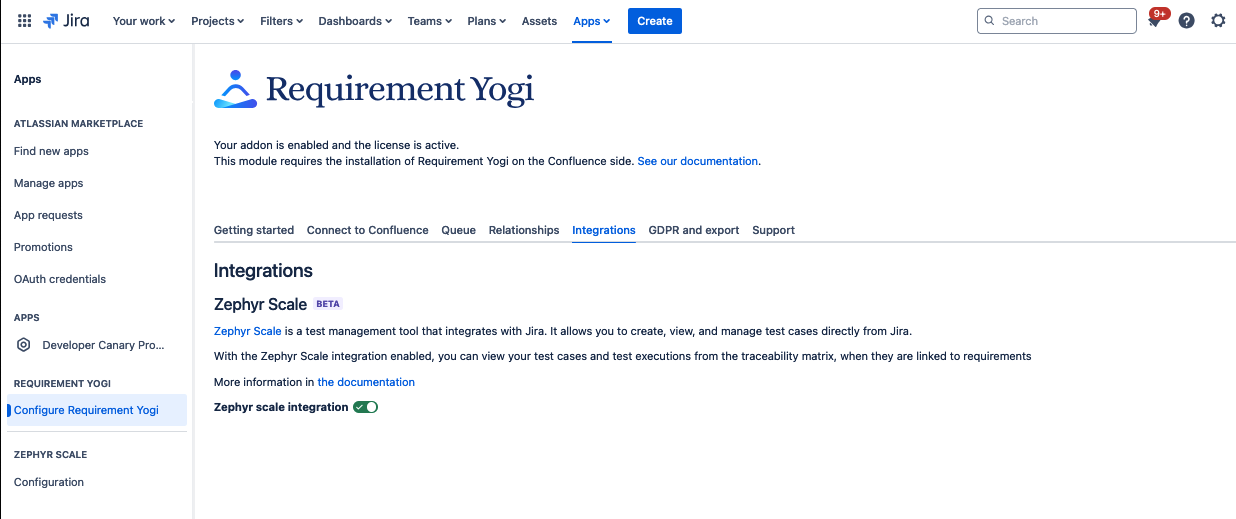
1 - Enable the integration (Global admin permission)
The integration requires Zephyr Testing for Jira, and the Requirement Yogi for Jira plugins.
In the Requirement Yogi for Jira Administration page, look for the Integrations tab and enable the Zephyr Scale Integration.
2 - Register an API key (All users)
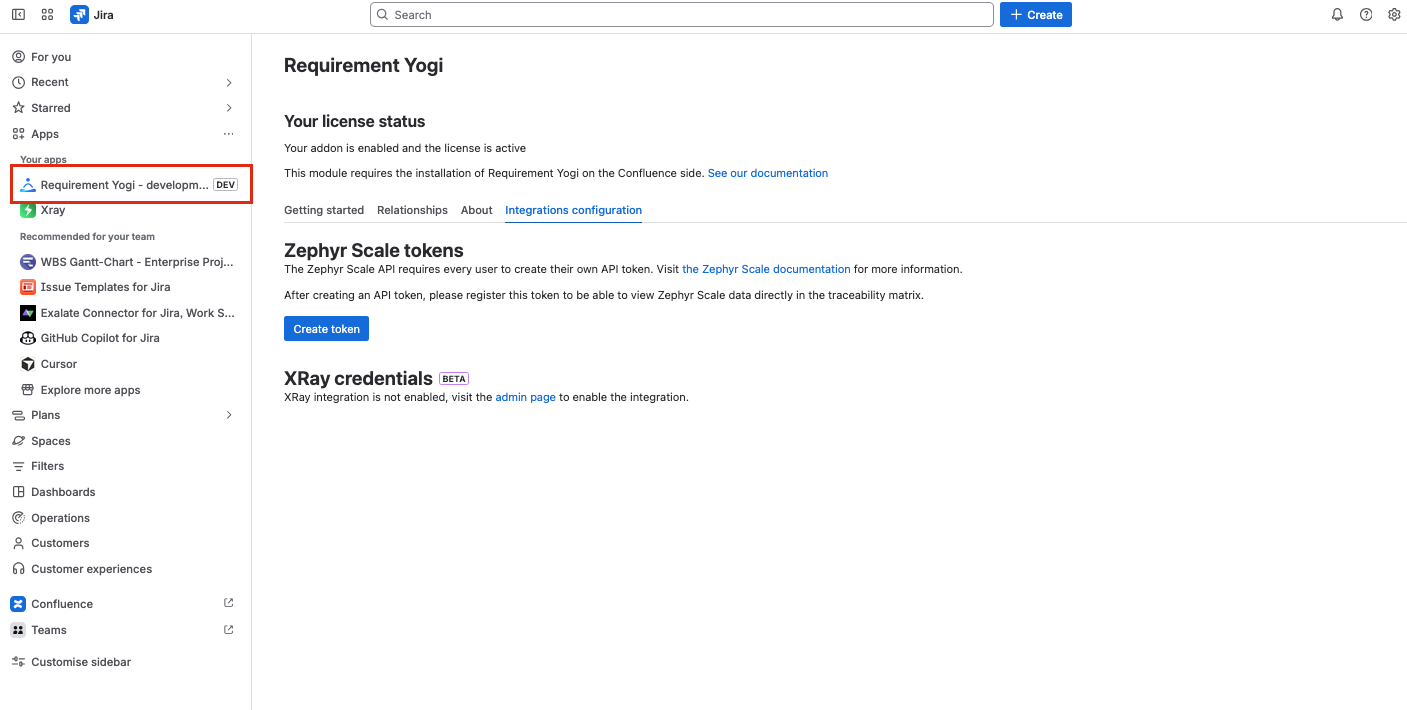
We access the Zephyr Scale data through the Zephyr Scale API, and need an authentication token.
This authentication token is unique per user and expires in 3 months.
To guarantee that edit and view permissions on Jira tickets are respected, every user that wish to see Zephyr Scale information in the traceability matrix will have to complete this step.
2.1 - Create a Zephyr Scale authentication token
Please refer to the Zephyr Scale documentation to create a unique API token
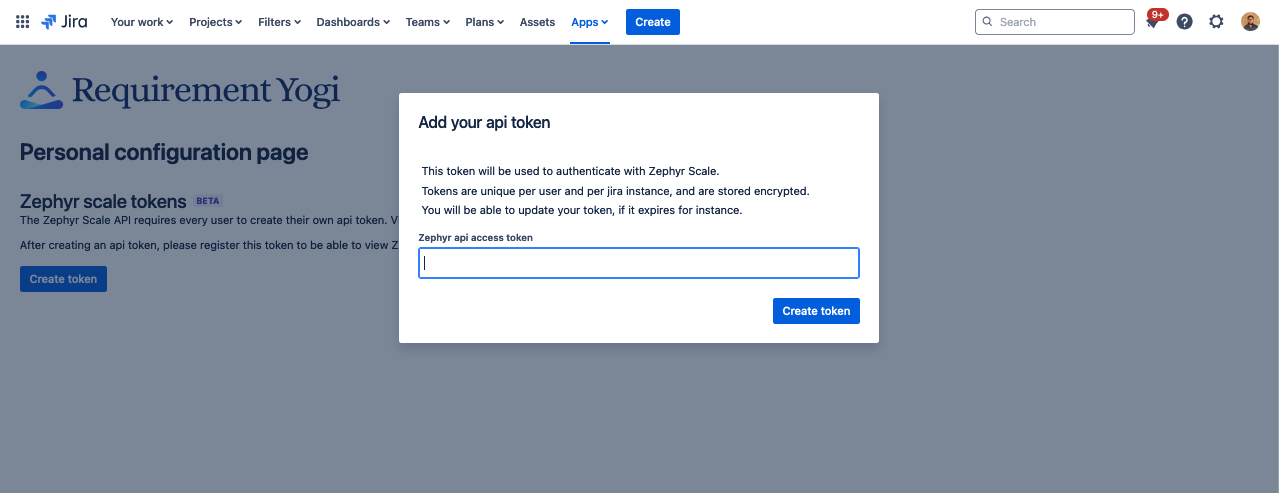
2.2 Copy the token created in Jira
|
|
|---|---|
|
|
Troubleshooting
If you see an error message similar to this:
Please make sure that
-
You have access to view the object in question.
-
Your API access token is still valid.

Limitations
-
In the traceability matrix, we limit the display of test executions associated to test cases to the latest 50.