
This issue is related to an internal framework migration requested by Atlassian for all marketplace apps. Please see more information here: Migration to Forge
Use case
There is a red error popping up with a ‘Time out’ error Remote invocation timed out after 25 seconds
-
When using the Search,
-
When using the Traceability Matrix,
-
When using the Excel Export,
-
… can happen in other parts of the app as well.
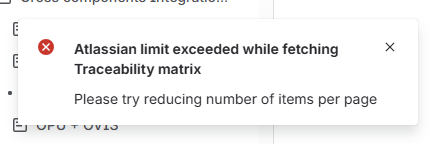
Explanations
As part of our migration from Connect to Forge, we are now bound by Atlassian for many aspects, including Forge invocation limits: https://developer.atlassian.com/platform/forge/limits-invocation/ .
When performing a search, or using the Traceability, we use Forge invocations to recover information from Atlassian such as requirement keys, properties etc. Those invocations have a limit of 25 seconds.
The request can be too long and trigger a timeout for different reasons:
-
There are too many requirements in the response
-
When you try and display many Jira issues, with many dependencies and informations in the Traceability.
-
Because we make requests to Jira’s API, if there are many Jira issues, and they have a lot of custom fields the response can take longer.
Quick fixes
Before you check the long-term solutions, you can try to fix your traceability with those tips:
-
Try to use a smaller pagination (20 or 50 items, note that this filters all columns, not only the first column).
-
Try reducing the number of columns, especially if you show too many Jira fields.
-
Try using smaller queries to reduce the number of results.
Long-term solutions
1. Asynchronous Export
We have just release Asynchronous export of your matrix which means the export is now done in the back-end instead of the front-end.
-
You should no longer reach the 25s timeout by Atlassian.
-
The excel job is now visible in the Champion Center > Queue.
-
You still need to keep the tab open so the file gets downloaded in your browser.
2. Use our own app who doesn’t suffer from Atlassian limitations
We’re releasing the standalone app, which will mirror the app in Confluence and Jira, only faster and with our own UX.
⚠️ Before you continue, please make sure you know where your Confluence instance is located (See Data residency). Depending on your location US, or EU, the app’s URL is different.
Create an account
-
Go to app.requirementyogi.com (EU Data Residency), or app.us.requirementyogi.com (US Data Residency).
-
Create an account.
-
You will receive an email to verify your account.
Link your account to your Atlassian instance
-
In app.requirementyogi.com (EU Data Residency), or app.us.requirementyogi.com (US Data Residency).
-
Navigate to
Settings>Linked accounts> Click theLinkbutton. -
You will be redirected to the Atlassian authorization prompt. You will be asked to log in to your Atlassian account if you haven’t already.
-
Choose the Atlassian site where your requirements are defined.
-
Make sure you agree with the requested permissions.
-
-
Click the
Acceptbutton. -
You can repeat the link process to authorize access for multiple Atlassian sites
Quick notes on permissions
-
Make sure you’ve read our Privacy Policy and our Terms of Service.
-
Please note that permissions of our app are checked against the permissions of your linked Atlassian account. So ensure the linked Atlassian account has the appropriate permissions for your use cases.
Access your requirements in our standalone app
-
Go to app.requirementyogi.com (EU), or app.us.requirementyogi.com (US) and login.
-
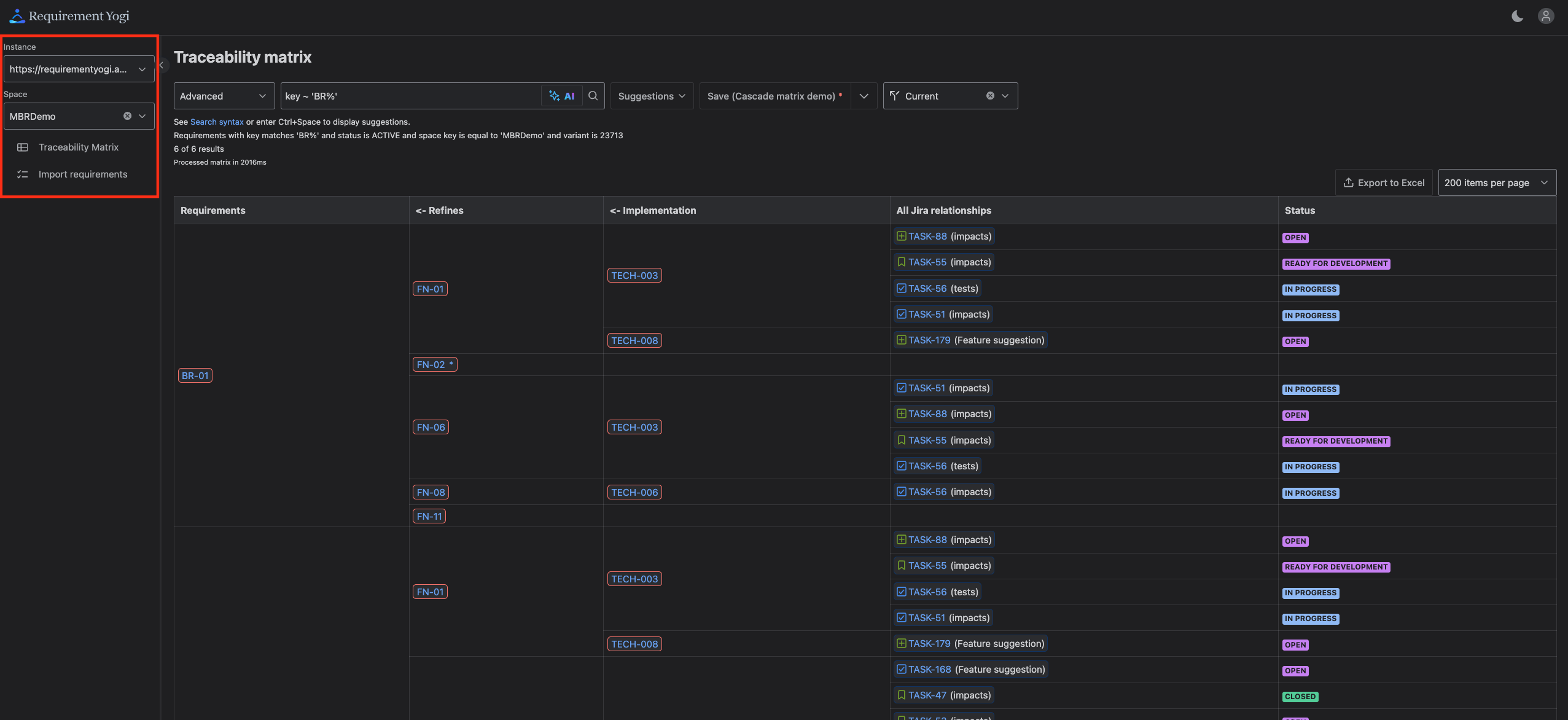
You will land on a screen to select your instance and space. Then you’ll be able to access the Traceability:
FAQ and Gotchas
Is the data stored in Confluence our RY servers ?
-
Both.
-
Requirements are stored in Confluence pages with requirement IDs, the content of properties and dependencies.
-
We also store that information in our databases (requirement IDs, properties and dependencies), it allows us to recover information for the Traceability for example.
In addition to that, Requirement Yogi stores External Properties, saved matrices, Baselines, requirement types and information related to your requirements directly.
Please read our Privacy Policy and our Terms of Service for more details.