
The Suspect feature helps teams identify requirements that may need review after upstream changes. Suspects provide a lightweight change-notification workflow for requirements without modifying the Confluence page content.
When enabled on a Requirement Type, Requirement Yogi automatically sets the external property ext@Suspect to TRUE on impacted requirements and, optionally, on their direct children. You can then search and filter requirements based on the “Suspect” flag, or reset the flag as needed.
Use cases
-
Impact analysis: Review children after a parent requirement changes.
-
Filter matrices with
Suspect IS TRUEto clear or review suspect items in bulk. -
Approval and baselines: Freeze the suspect state in baselines to document known-review needs at a point in time.
How to enable Suspects
The suspects feature is only associated to requirement types.
-
Go to the Requirement Yogi page in a space and open the Requirement Types tab.
-
Create a new Requirement Type, or open an existing one to configure it.
-
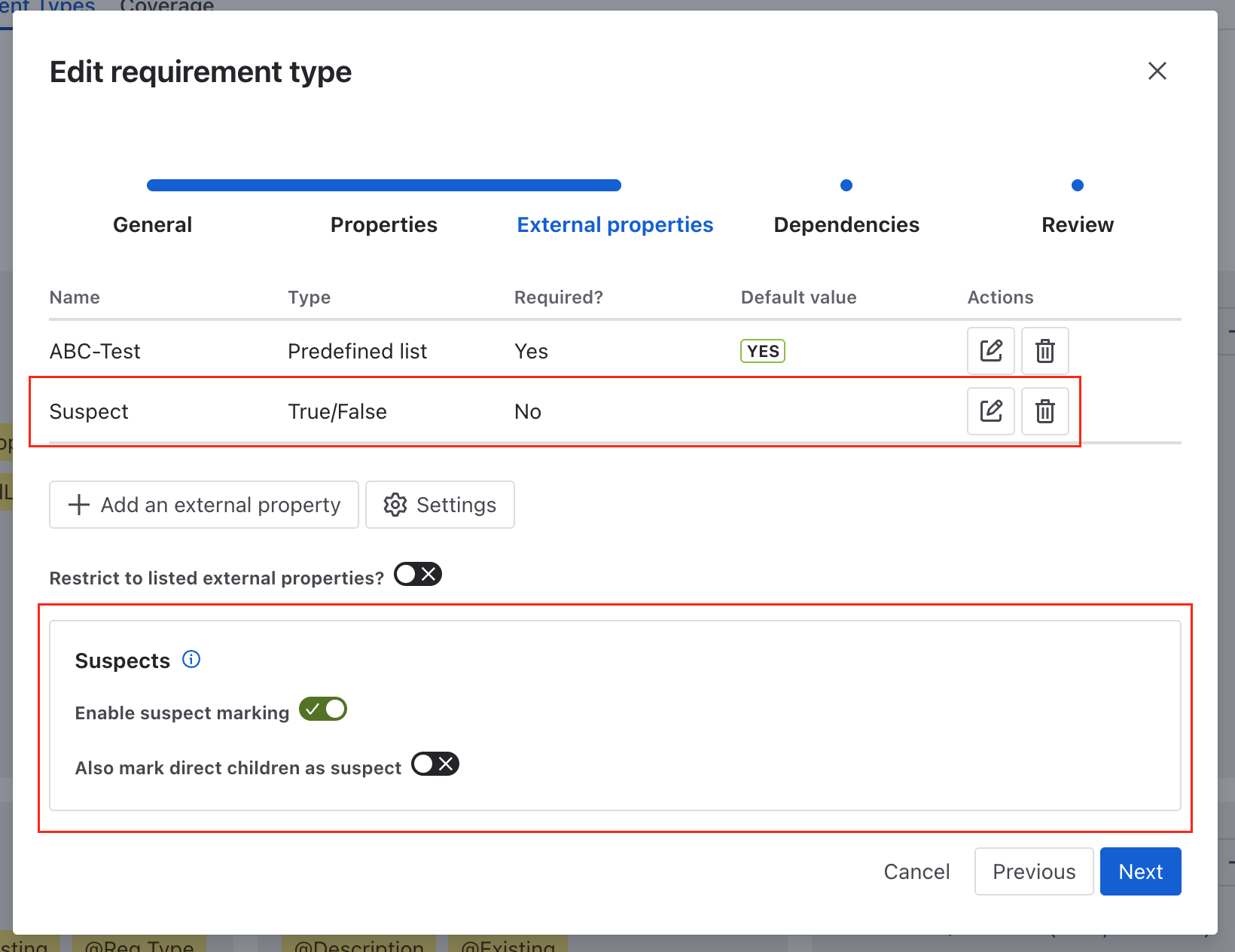
In the “External properties” section, toggle “Activate suspects on requirement type”. This will automatically add the ‘Suspect’ external property.
-
Toggle “Include direct children dependencies” to flag direct children when a parent changes. (Optional)
-
Save the Requirement Type.
Suspect triggers
-
Creating a new requirement.
-
Moving a requirement to a different space or Variant.
-
Freezing a requirement will set the suspect on baselined requirements.
-
Modifying a requirement
-
Author edits the description or properties of a requirement on a page: the edited requirement’s
ext@Suspectbecomes TRUE. -
Author changes a requirement’s dependency: the linked requirement becomes suspect.
-
Author edits external properties (other than toggling Suspect from TRUE to FALSE): the requirement becomes suspect.
-
Propagating to children
-
If “Include direct children dependencies” is enabled for the Requirement Type, direct children of the changed requirement are also flagged suspect.
-
This focuses review where it matters most (immediate dependents) while avoiding large cascade flags.
What does NOT trigger suspects
-
Changing Requirement Types configuration alone.
-
Adding or removing Jira issues linked to the requirement.
How to find suspect requirements
-
Use the search syntax:
-
ext@Suspect = TRUE(explicit) -
Suspect IS TRUE(friendly alias)
-
-
Combine with other filters, e.g. by Requirement Type, parent, or space.
-
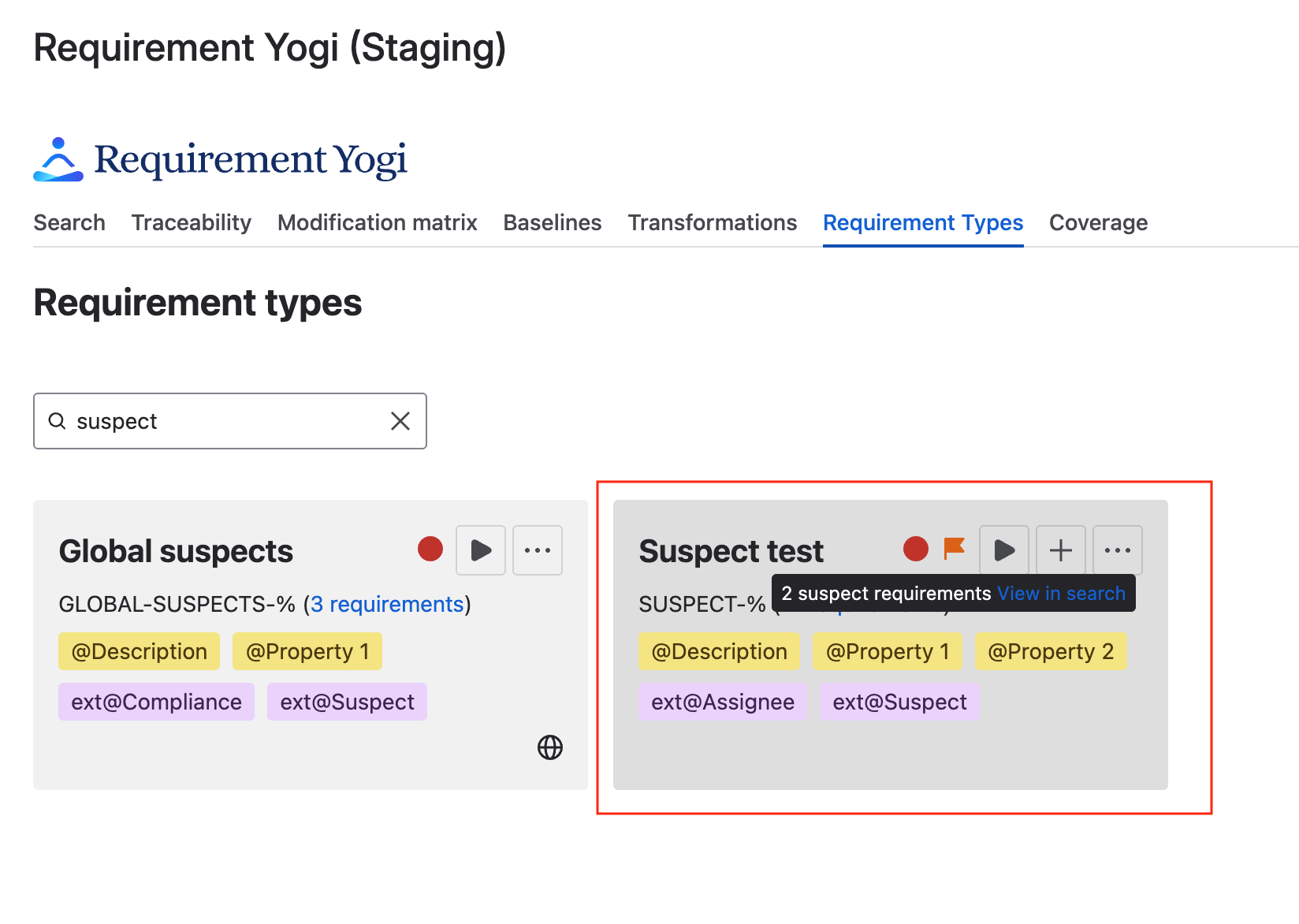
Requirement Type cards also display a suspect indicator with the number of suspect requirements
How to review and clear suspects
-
In bulk
-
Use the search syntax, and open a traceability matrix with
Suspect is TRUE. -
Add columns of your choice to review the details of the requirement.
-
Enable the edit mode to toggle the external property Suspect back to FALSE when the item has been reviewed.
-
-
In the requirement details:
-
Open the requirement details, and review the requirement and its context.
-
Uncheck the Suspect external property checkbox
-
Troubleshooting
-
Can’t see or edit the Suspect column in Traceability: ensure you’re in edit mode and you have permissions to edit external properties in the space.
Frequently Asked Questions
What is ext@Suspect and who can edit it?
ext@Suspect is an External Property of type Boolean created or ensured by the Suspect configuration on a Requirement Type. Like other external properties, users with edit rights on the space can change its value (e.g., reset to FALSE after review) through the requirement popup or the Traceability Matrix in edit mode.
When exactly does a requirement become suspect?
When its content changes on the page (description or in-page properties), when its external properties change, or when its parent dependency changes and the parent requirement has the “Include direct children dependencies” enabled.
Do I need to create an external property Suspect ?
All instances have the external property Suspect created by default. When activating suspects on a Requirement Type (or during suspect runs), it recreates the property if missing
Can I search suspects without typing ext@Suspect?
Yes. Use the alias Suspect IS TRUE which resolves to ext@Suspect = TRUE.
Will adding or removing a linked Jira issue mark a requirement suspect?
No. Linking/unlinking Jira issues does not trigger suspects.